
Quick Start
You've installed TaskView and created an account. Here's how to get productive in 5 minutes.
Create a project

Click the + button in the sidebar to create your first project. Give it a name, and you're done.
A project is a top-level container for all your work - it has its own lists, tags, statuses, team members, and permissions.
Add lists
Inside a project, create lists to organize tasks into groups. Think of lists as folders - "Backend", "Frontend", "Design", "Bugs", whatever makes sense for your workflow.
Enter list name in the header and press enter. You can ignore lists creation and create tasks in the created project directly.
Create tasks
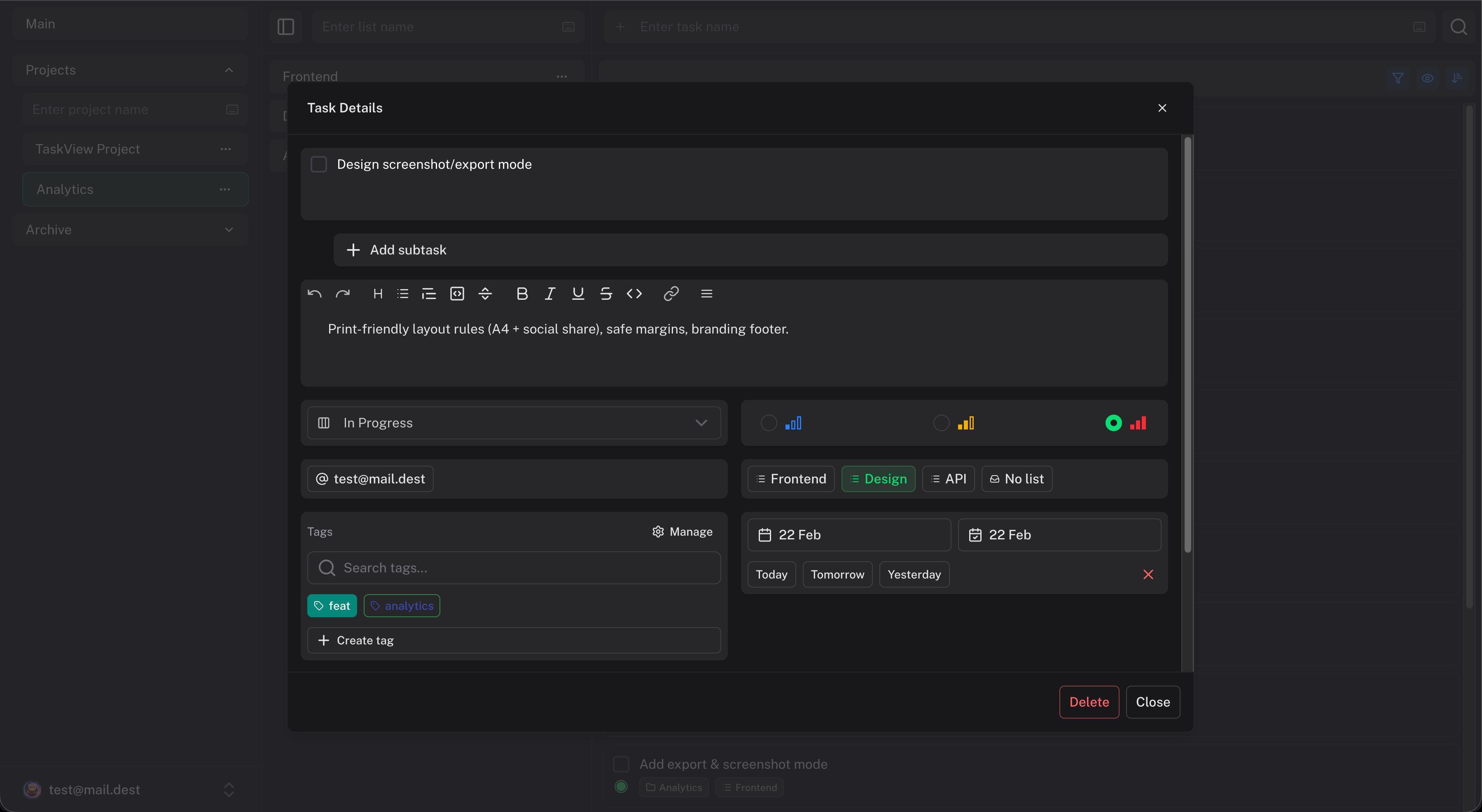
Click inside a list and start adding tasks. Each task can have:
- Priority - how urgent it is
- Deadline - when it's due (with optional time)
- Notes - rich text description with formatting
- Tags - color-coded labels for categorization
- Subtasks - break work into smaller pieces, as deep as you need
- Assignees - who's responsible (multiple people allowed)
- Financial amount - attach an income or expense for budget tracking
- Task history - every change to a task's own properties (title, description, priority, deadline, status, etc.) is tracked and can be restored. Note: changes to tags, assignees, and other related entities are not part of the history - only fields stored directly in the task record.
Switch views
TaskView gives you three ways to look at your work:
List view
The default view. Tasks grouped by list, with all details visible. Best for day-to-day task management.
Kanban board
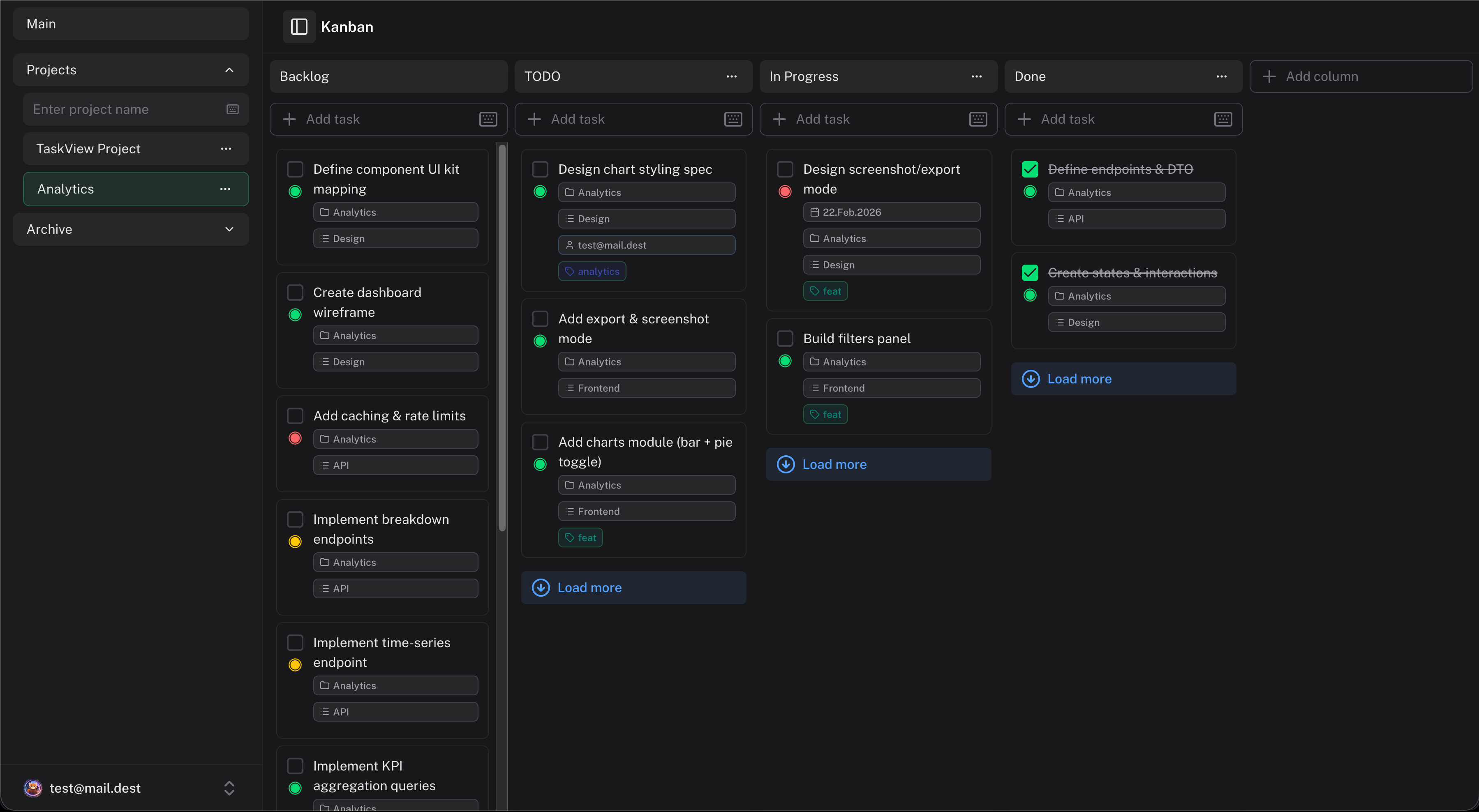 Visual columns representing statuses. Drag tasks between columns to update their status. Great for tracking workflow stages like "Backlog → To Do → In Progress → Done".
You can customize the columns - each project has its own set of statuses.
Dependency graph

An interactive network graph showing how tasks connect to each other. Link tasks to define dependencies, then zoom out to see the big picture. Useful for planning complex work where order matters.
Calendar
Tasks laid out by their start and end dates, in month, week or list views. Cards are colored by priority, so busy days and urgent work stand out. Useful for planning the week and keeping an eye on deadlines.
Use the dashboard
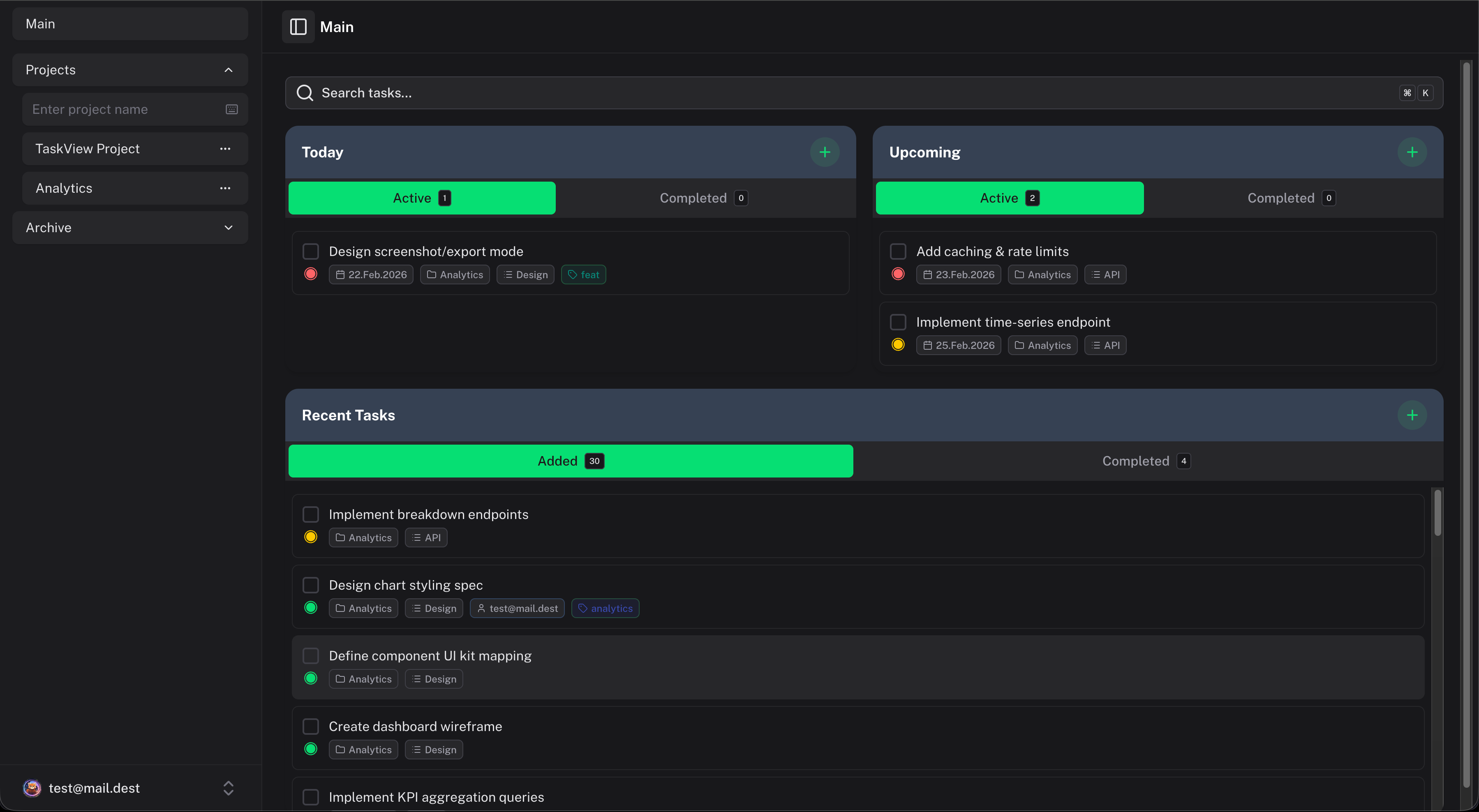 The main screen (home page) shows a dashboard with widgets:
- Today's tasks - what's due today
- Upcoming deadlines - what's coming soon
- Recent activity - latest changes across all projects
- Completed tasks - what's been done
This gives you a quick overview without opening any specific project.
Search
Use the global search (click the search icon or press Ctrl+K / Cmd+K) to find any task across all your projects. Filter by tags, priorities, statuses, or assignees (available only in the selected project).
What's next
- Learn about Kanban boards - customize columns and workflow
- Set up task dependencies - link related tasks on the graph
- Plan with the calendar - see tasks by date
- Invite your team - collaborate with others
Installation
Install and deploy TaskView using Docker Compose. Step-by-step setup guide for a self-hosted task management server with PostgreSQL, Node.js API, and Vue web app. Deploy on any server in 5 minutes.
Projects and Lists
Organize work with projects, task lists, and color-coded tags in TaskView. Each project has independent members, roles, statuses, permissions, and archiving. Flexible workspace management for teams.