
Kanban Board
The Kanban board gives you a visual overview of your project's workflow. Tasks are displayed as cards in columns, where each column represents a status (like "To Do", "In Progress", "Done").
Opening the Kanban view
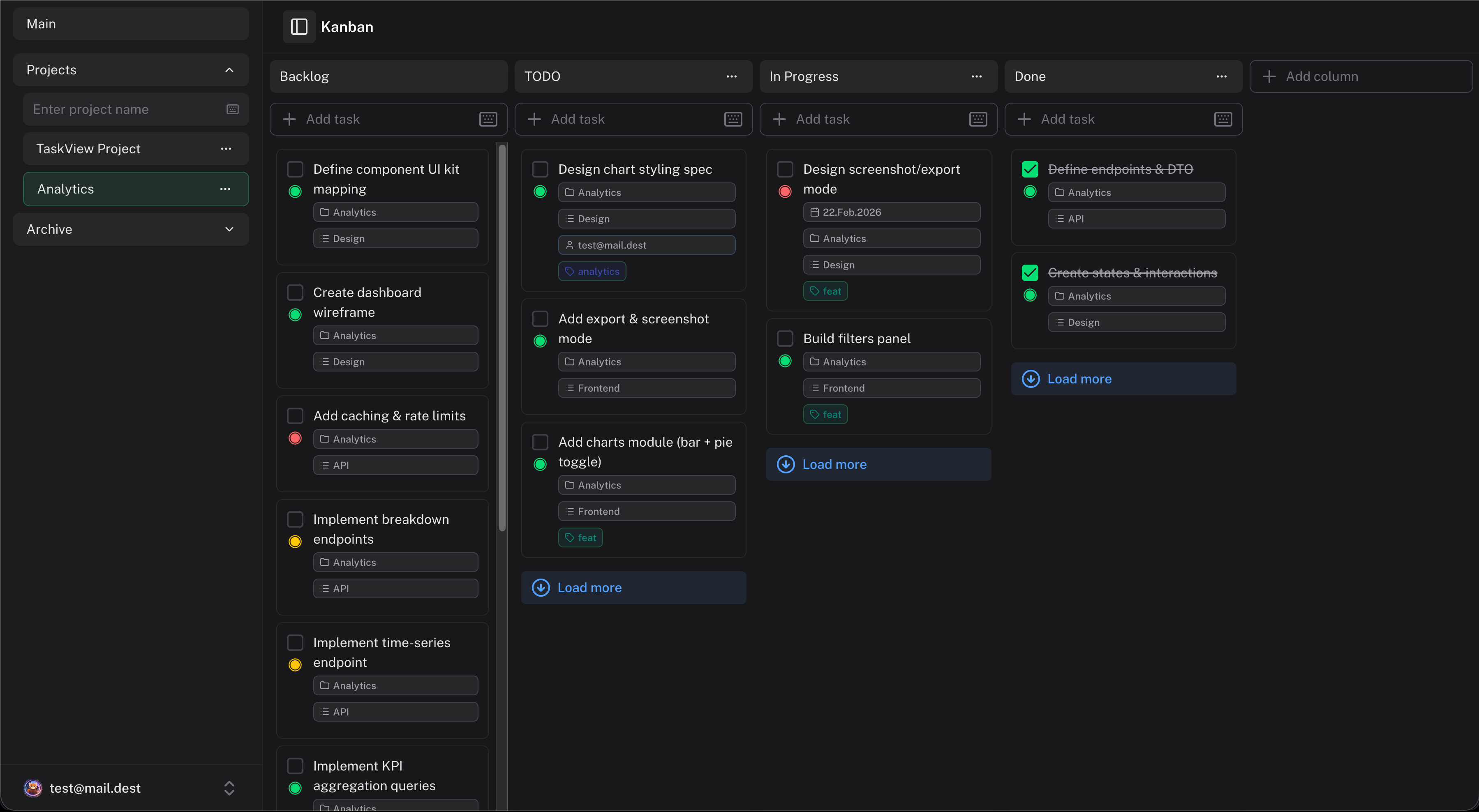
Select a project in the sidebar, then click the Kanban button in the context menu. You'll see all your tasks arranged in columns.
Columns are statuses
Each column on the Kanban board is a status. Every project has its own set of statuses, so you can customize the workflow for each project independently.
By default, new projects have Backlog, TODO, In Progress, Done.
Adding a column
Click the Add column button on the board to add a new status column. Give it a name - "Backlog", "In Progress", "Review", "Done", or whatever fits your workflow.
Editing a column
Click the column header to rename it or change its properties.
Deleting a column
Remove a column from the column settings. Tasks in that column will need to be moved to another status first.
Reordering columns
Column reordering is not supported yet - columns are displayed in the order they were created. Keep this in mind when adding new columns and create them in the order you want. This will be fixed in a future version.
Moving tasks
Drag a task card from one column to another to change its status. The task's position within the column is also saved, so you can prioritize by dragging tasks up and down within the same column.
When you move a task on the Kanban board, the status change is reflected everywhere - in the list view, in the task detail panel, and in any filters.
What you see on a card
Each Kanban card shows:
- Task title
- Priority indicator
- Deadline (if set)
- Assigned users (avatars)
- Tags (color badges)
Click a card to open the full task detail panel, where you can edit everything.
Tips
- Start simple - three columns ("To Do", "In Progress", "Done") are enough for most projects. Add more columns only when you actually need them.
- Limit work in progress - if "In Progress" has 20 cards, nothing is really in progress. Keep the number manageable.
- Use the list view for bulk edits - Kanban is great for visual tracking, but the list view is faster when you need to update many tasks at once.
Tasks
Create and manage tasks in TaskView - subtasks, deadlines, priorities, assignees, tags, rich-text notes, financial tracking, and full change history with restore. Self-hosted task tracking with no limits.
Dependency Graph
Visualize task dependencies with an interactive network graph in TaskView. Connect tasks, identify blockers and bottlenecks, plan work order, and manage complex project workflows visually.