
Projects and Lists
Everything in TaskView starts with a project. A project is a workspace that contains lists, tasks, team members, tags, statuses, and permissions - all scoped to that project.
Projects
Creating a project
Click the Enter project name input in the sidebar. Enter a name, and hit save. That's it - you can start adding lists and tasks right away.

Project settings
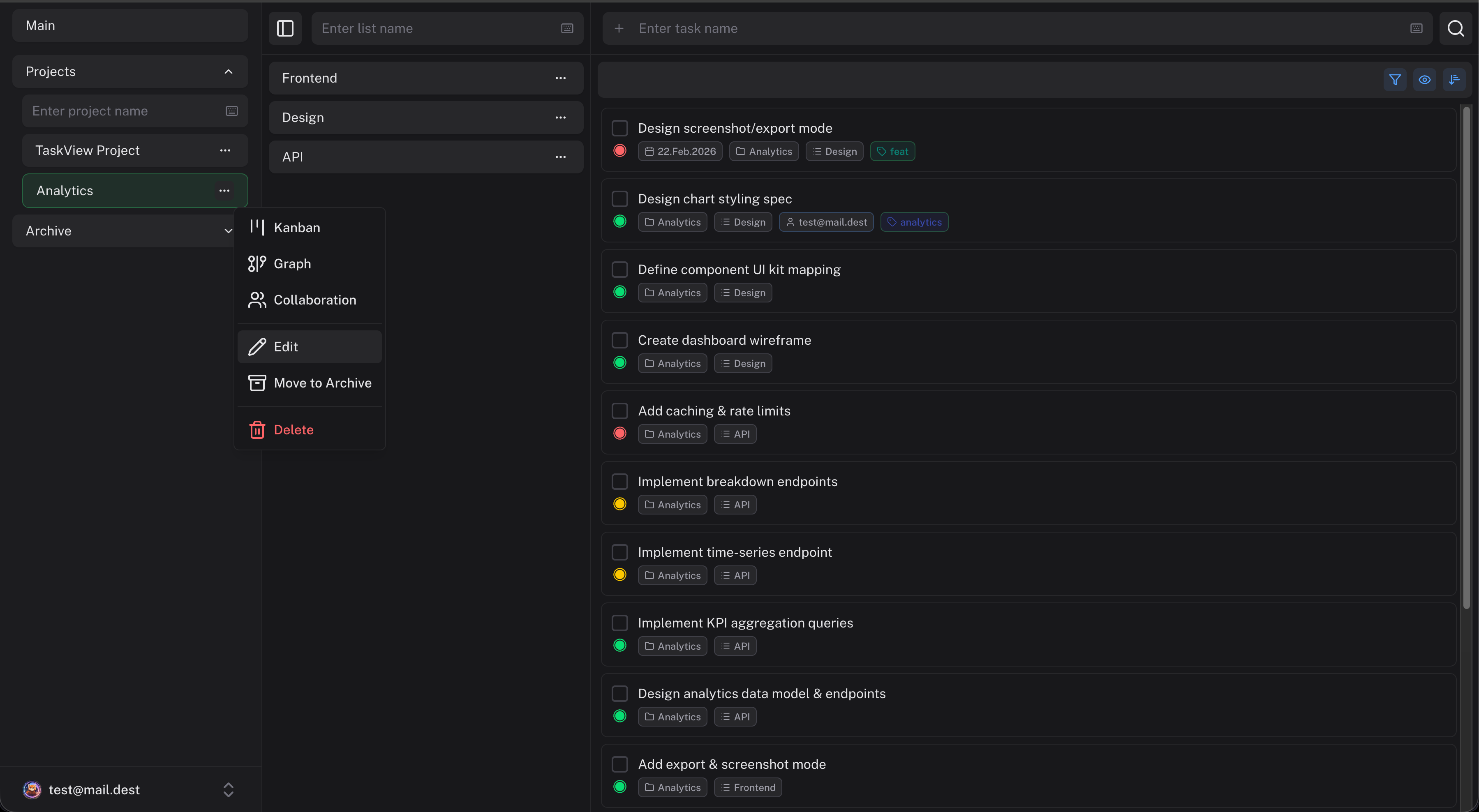 Click the more button a project in the sidebar to access:
- Rename - change the project name or color
- Archive - hide the project without deleting it (you can restore it later)
- Delete - permanently remove the project and all its data
- Integrations - connect GitHub or GitLab repositories
- Collaboration - manage team members and permissions
Archiving
If you're done with a project but want to keep the data around, archive it instead of deleting it. Archived projects disappear from the sidebar but can be restored at any time.
Lists
Lists live inside projects. They're a way to group related tasks - by feature, by team, by phase, or however you prefer.
Creating a list
Click the Enter list name input in the header. Give the list a name and it appears as a section within the project.
Deleting a list
Click a list More button and choose Delete. This removes the list and all tasks inside it. There's no undo for this, so make sure you really want to do it.
Tags
Each project has its own set of tags. Tags are color-coded labels you attach to tasks for quick visual identification.
Managing tags
Go to a project and open the task Detailed form by clicking to the task and scroll to the tag management panel. You can:
- Create tags with a name and color
- Edit existing tags
- Delete tags (they'll be removed from all tasks that use them)
Tagging tasks
Open a task and click the tags area. Select one or more tags from the list. You can filter tasks by tag in the list view.
Best practices
- One project per real-world project - don't try to fit everything into a single project. Each project gets its own permissions, tags, and statuses.
- Keep list names short - "Backend", "Bugs", "Sprint 14" work better than long descriptions.
- Use tags for cross-cutting concerns - things like "urgent", "blocked", "needs-review" that apply across multiple lists.
Quick Start
Get started with TaskView in 5 minutes - create projects, add task lists, organize work with Kanban boards and dependency graphs. Quick start guide for self-hosted project and task management.
Organizations
Group projects and team members under organizations in TaskView. Manage access with organization-level roles - owner, admin, and member. Each organization has its own members, projects, and settings.