
Tasks
Tasks are the core of TaskView. Every piece of work - a bug to fix, a feature to build, a meeting to prepare - is a task.
Creating tasks
Click inside any list to add a task. Type a title and press Enter. The task is created immediately - you can add details later.
Task details
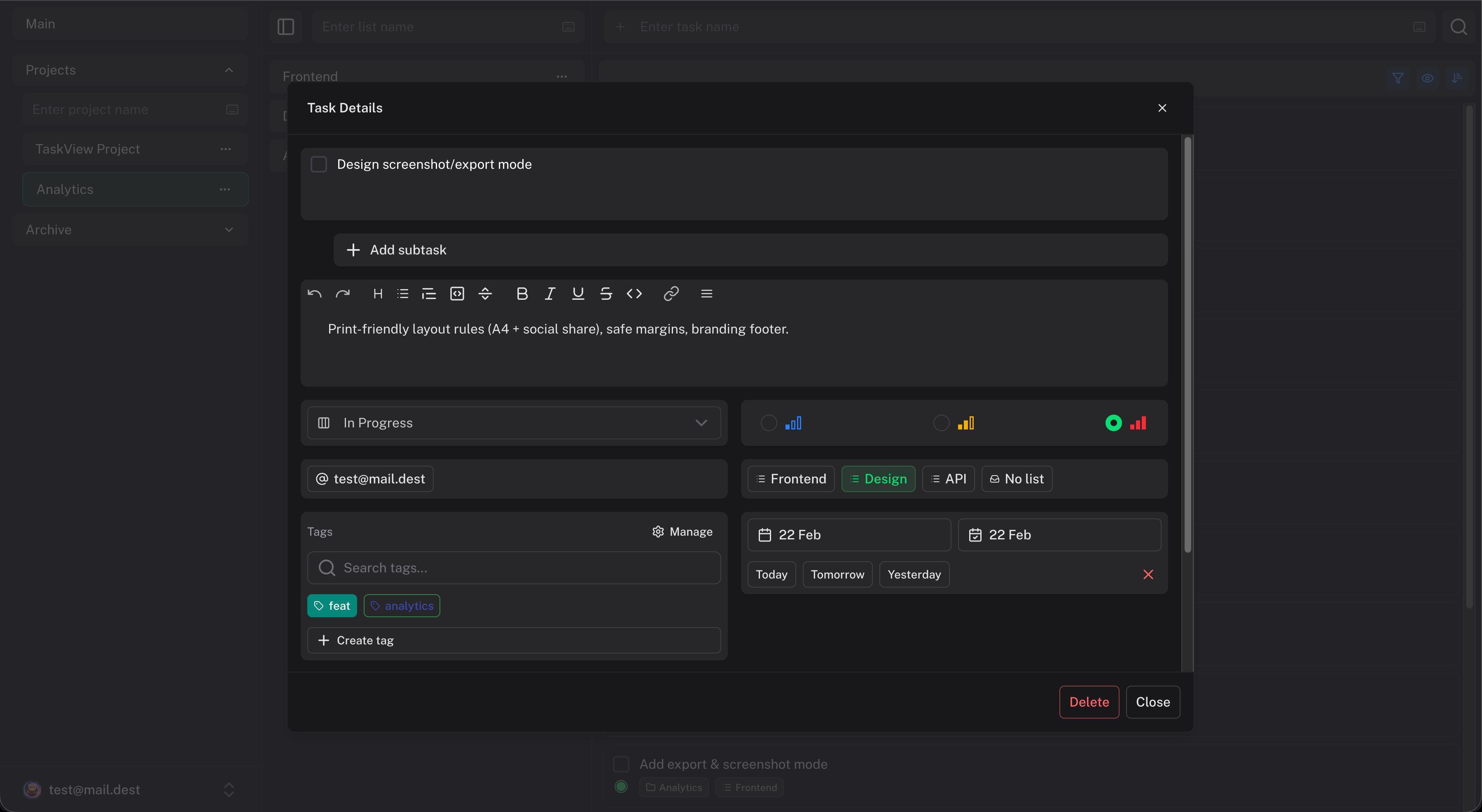 Click on a task to open the detail panel. Here you can set:
Priority
How urgent this task is. Priorities help you and your team focus on what matters most. Tasks can be sorted by priority in the list view.
Deadline
When the task is due. You can set just a date, or a date with a specific time. Quick shortcuts are available for common choices like "Today", "This week", and "This month".
The dashboard will show upcoming deadlines so nothing slips through.
Notes
A rich text editor for longer descriptions, steps, links, or anything else. Supports formatting, headings, lists, and code blocks.
Assignees
Who's working on this. You can assign multiple people to a single task. Each assignee can have a different role (responsible, participant) depending on your project setup.
Tags
Color-coded labels for categorization. A task can have multiple tags. Tags are defined per project.
Status
The workflow state of the task - tied to your Kanban columns. Status can only be changed from the Kanban board by dragging the task between columns. There is readonly status selector in the task detail panel.
Financial amount
Attach a monetary amount to a task and mark it as income or expense. Useful for freelancers or teams that need basic budget tracking alongside task management.
Subtasks
Any task can have subtasks.
To create a subtask, open a task and click the Add subtasks in the subtasks section. Subtasks don't have priorities or other detailed properties - they're meant to break a task into small, easy-to-complete steps.
Completing a parent task doesn't automatically complete its subtasks. You can use this to track whether all the pieces of a larger task are actually done.
Task completion
Click the checkbox next to a task to mark it complete. Completed tasks are hidden from the list by default. To see them, click the eye button in the toolbar - completed tasks will appear dimmed alongside active ones. They also show up in the dashboard's "Completed" widget.
To reopen a completed task, just click the checkbox again.
Task history
TaskView keeps a history of changes for every task. If something was accidentally changed you can restore it.
Open a task, go to the history section, and you'll see a log of what changed and when. Click Restore on any previous version to bring it back.
A version saved before the task was moved to another project restores the task's content only: the task stays in its current project, list, kanban column and sprint.
Moving tasks to another project
Open a task and click Move in the detail panel, then pick a project. Only projects of the same organization where you can add tasks are listed. Subtasks cannot be moved on their own: they move together with their parent task.
Before you confirm, TaskView shows exactly what will happen:
- Moved: the task with its whole subtask tree, its content (description, note, priority, dates, amount, estimate), its history and its logged time.
- Removed: tags, assignees, links to attached files (the files themselves stay in the old project), dependencies with tasks that stay behind, sprint results, links to Git issues and repeat rules. Dependencies between the moved tasks are kept.
- Reset: the list, kanban column, sprint and graph position. The task lands in All tasks and the Backlog of the new project.
What moves also depends on your permissions in the target project:
- Without the permission to add subtasks, the subtasks stay in the old project as separate tasks.
- Logged time moves only if you may log time there: your own entries with the log permission, everyone's with the permission to manage all time. Entries that do not move stay in the old project's reports.
Moving a task needs the permission to delete tasks in the old project. For the old project a move is a removal: whoever may delete the task may also move it, and the move takes away its tags, assignees and the other links listed above without separate permissions for each of them.
If you cannot delete tasks in the old project, the task is copied instead: the original stays where it is, and a new task with the same content and subtasks is created in the target project. Logged time is not copied, so no hours are counted twice.
The move happens in a single transaction: either everything above is applied, or nothing is.
Deleting tasks
Delete a task from the context menu or the detail panel. Deleted tasks go through the history system, so you can not recover them.
SCIM provisioning
Let your identity provider create, update and deactivate organization members over SCIM 2.0, and link provider groups to projects so new group members get project access automatically.
Kanban Board
Kanban board in TaskView - drag-and-drop task cards, customizable status columns per project, and visual workflow management. Self-hosted alternative to Trello with full data control.