
Dependency Graph
The dependency graph shows how tasks in a project relate to each other. If task B can't start until task A is done, you create a dependency - and the graph makes that relationship visible.
Opening the graph

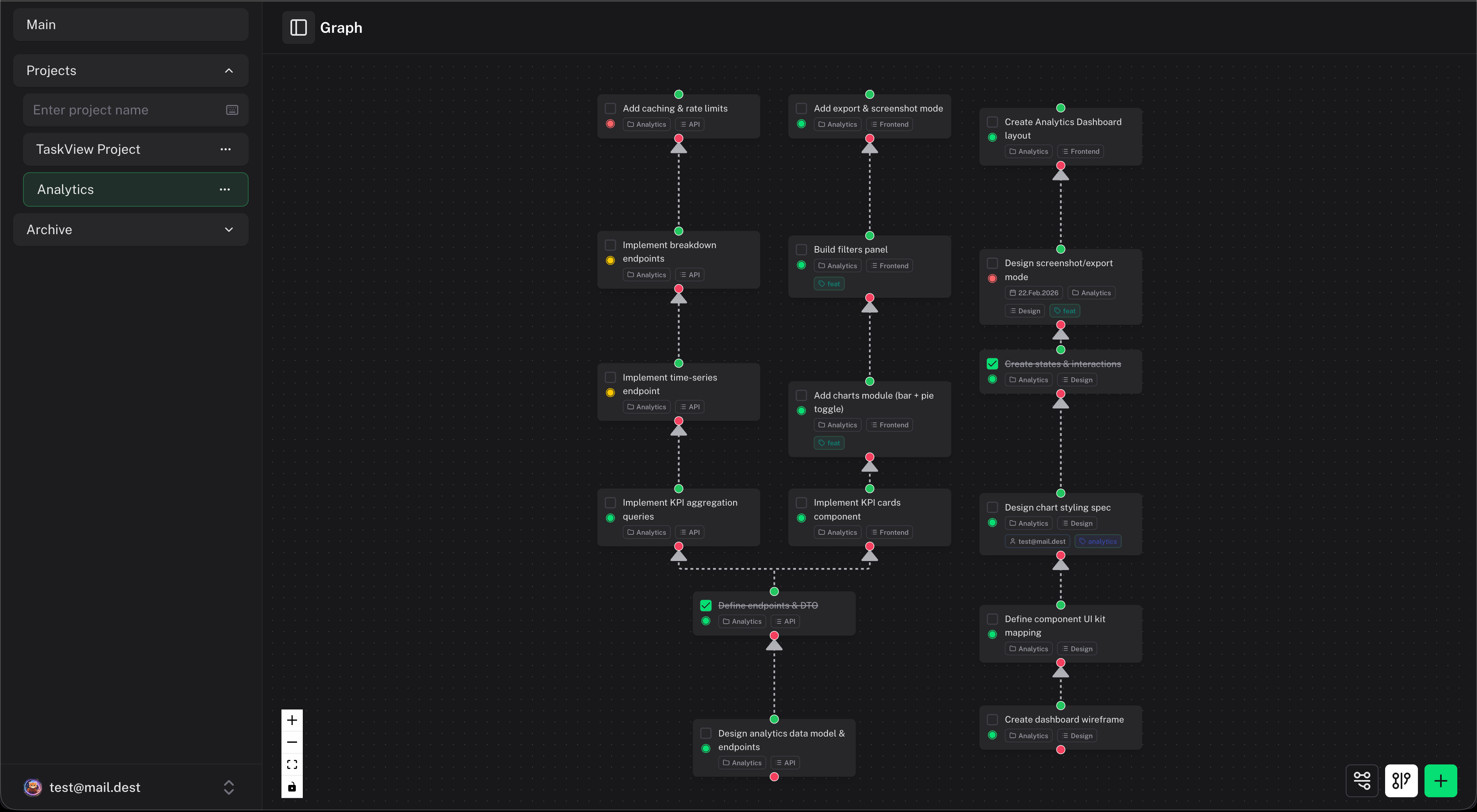 Select a project in the sidebar, then click the Graph button. You'll see all your tasks as standalone nodes. By default, tasks have no dependencies - you connect them yourself by dragging edges between nodes to build the sequence you need.
Creating dependencies
To link two tasks:
- Open the graph view
- Drag from one task node to another to create a connection
- The arrow indicates the direction - "this task depends on that task"
You can also create dependencies from the task detail panel by selecting related tasks.
Reading the graph
- Nodes are tasks. Their appearance reflects the task's current state (complete, in progress, overdue).
- Edges are dependencies. An arrow from task A to task B means "B depends on A" - A should be done before B starts.
- Clusters of heavily connected tasks show you where the complex work is.
- Isolated nodes are tasks with no dependencies - they can be done anytime.
Navigating
- Zoom in and out with the scroll wheel or pinch gesture
- Pan by dragging the background
- Click a node to select it and see the task details
- Minimap in the corner shows your position in the full graph
Removing dependencies
Click on an edge (the line between two tasks) and delete it. This only removes the dependency relationship - it doesn't affect the tasks themselves.
When to use the graph
The graph is most useful when:
- You're planning a complex feature with many interconnected tasks
- You need to figure out what to work on first (follow the arrows upstream)
- You want to spot bottleneck tasks that block many other tasks
- You're onboarding someone and want to show them how the work fits together
For simple projects with independent tasks, the list or Kanban view is usually enough.
Kanban Board
Kanban board in TaskView - drag-and-drop task cards, customizable status columns per project, and visual workflow management. Self-hosted alternative to Trello with full data control.
Dashboard
TaskView dashboard - smart widgets for today's tasks, upcoming deadlines, recent activity, completed work, and daily planning overview across all your projects.